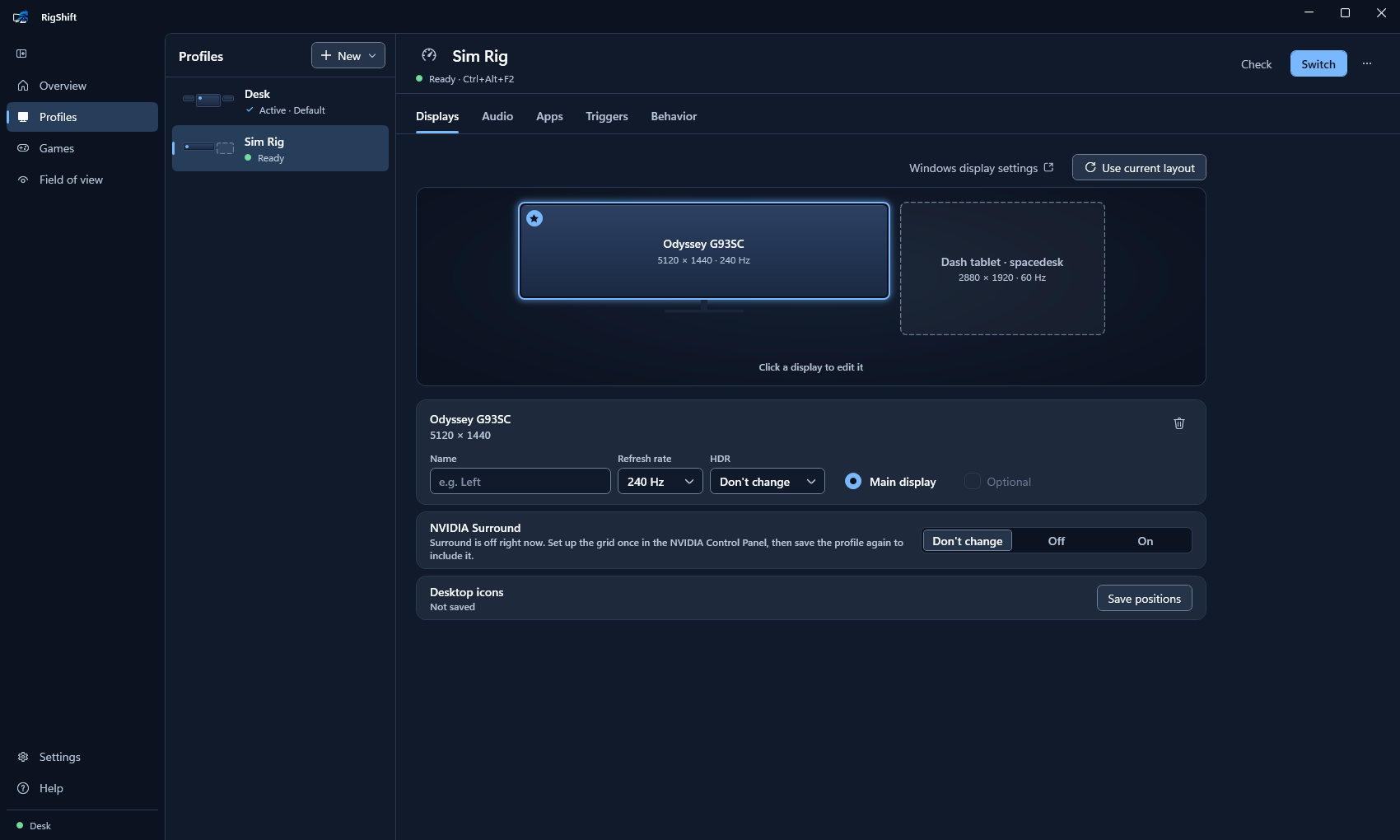
Displays
Which monitors are on, their arrangement, main display, refresh rate, HDR and NVIDIA Surround. The whole layout is applied in one Windows call, so it either works completely or nothing changes.

Switches a Windows PC between desk and sim rig: displays, sound, apps and desktop icons in one step.
Free · MIT licence · No account, no telemetry · English and German
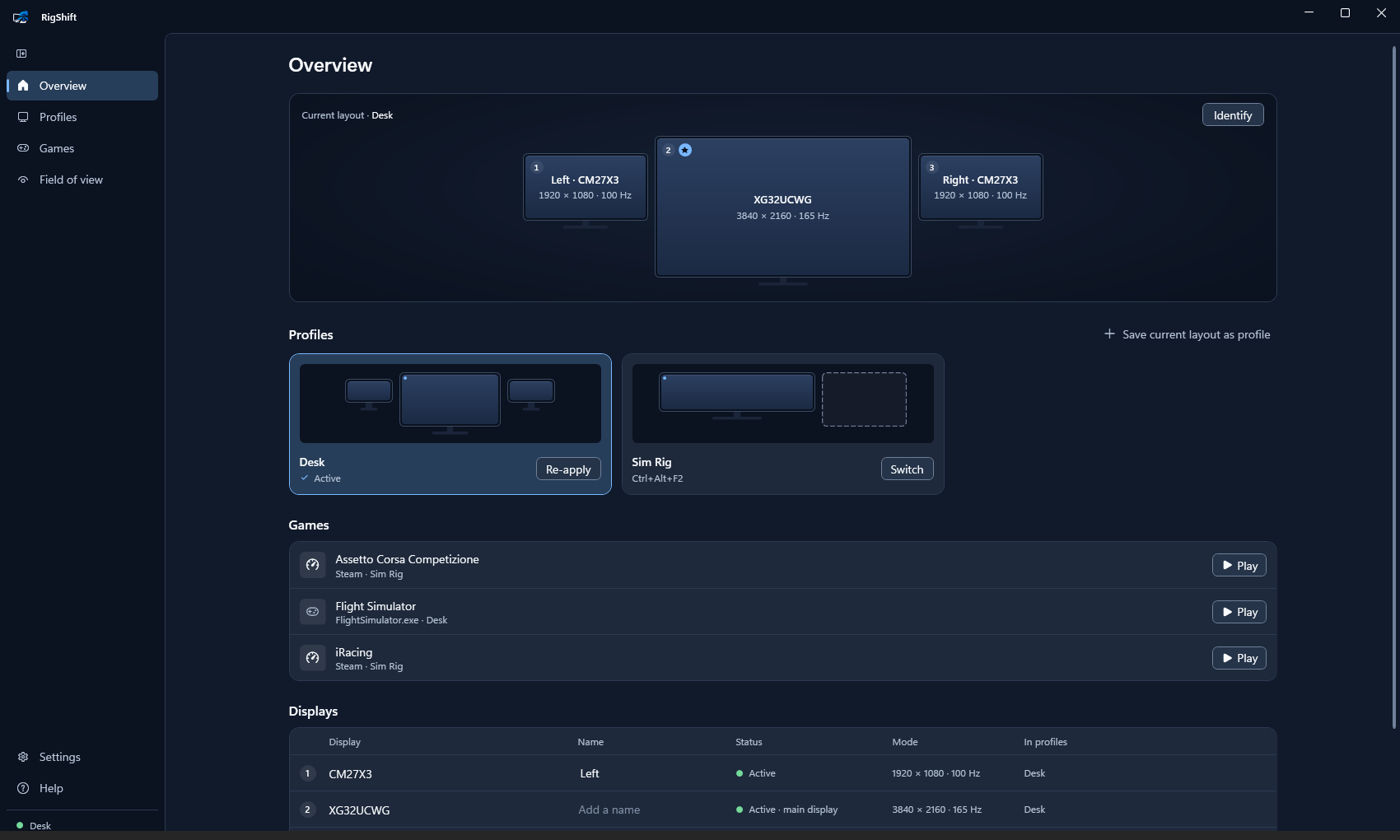
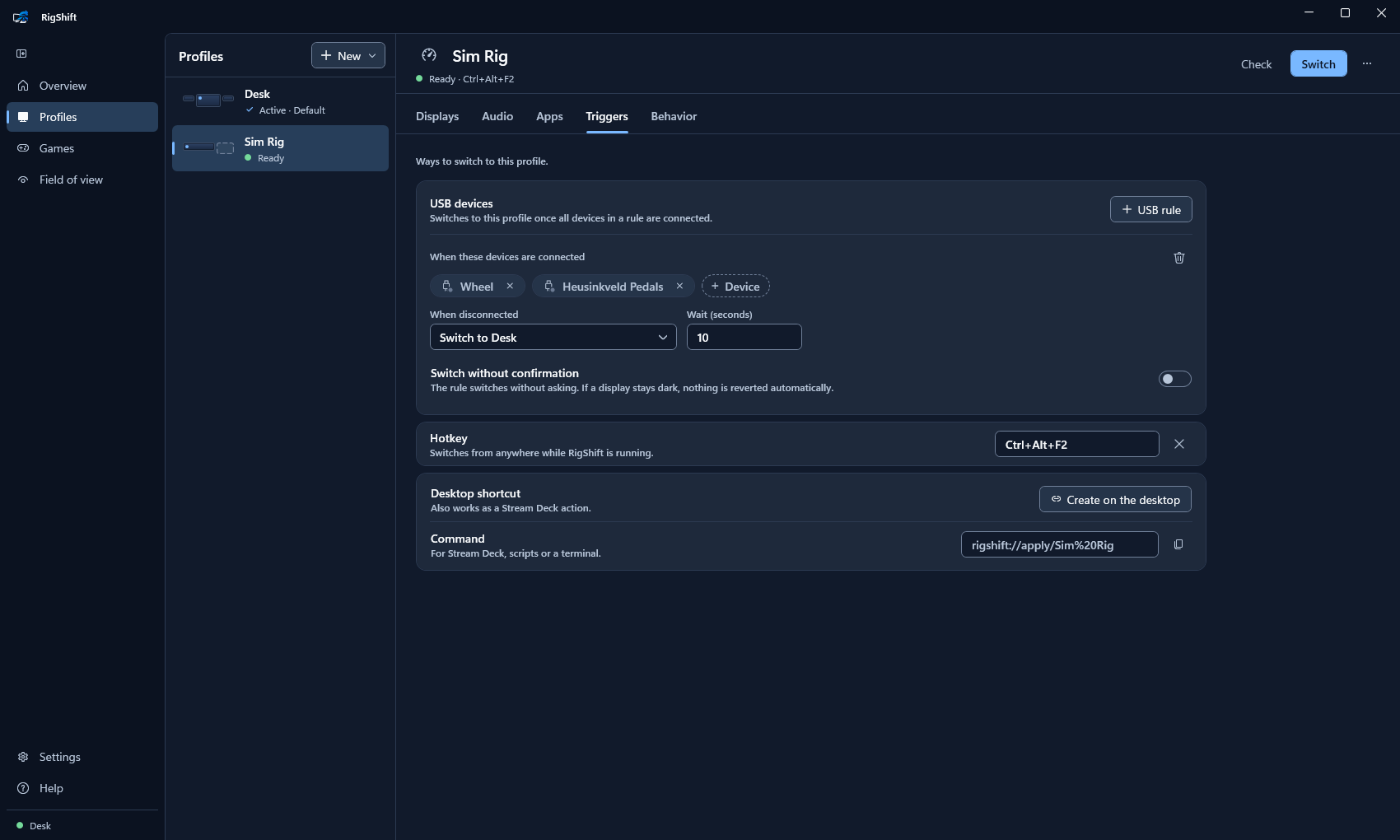
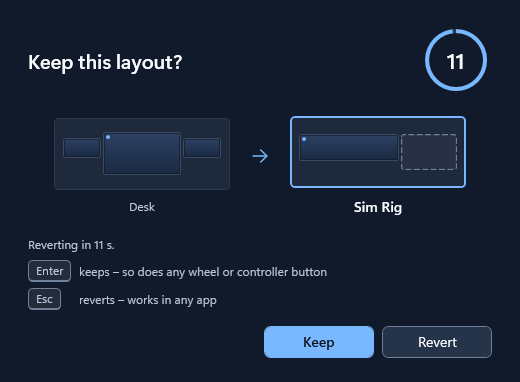
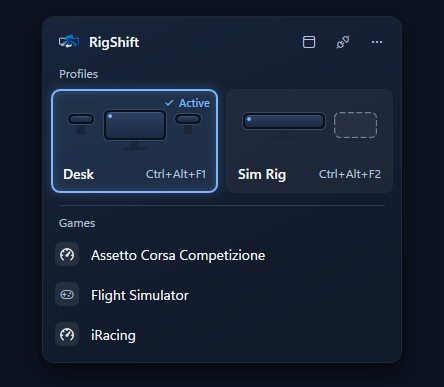
Which monitors are on, their arrangement, main display, refresh rate, HDR and NVIDIA Surround. The whole layout is applied in one Windows call, so it either works completely or nothing changes.
After each switch, Enter or any wheel button keeps the layout. Otherwise the previous layout and sound return, also after a crash.
Profiles and games are one click away. Each profile can have a hotkey, and one more toggles between the last two.
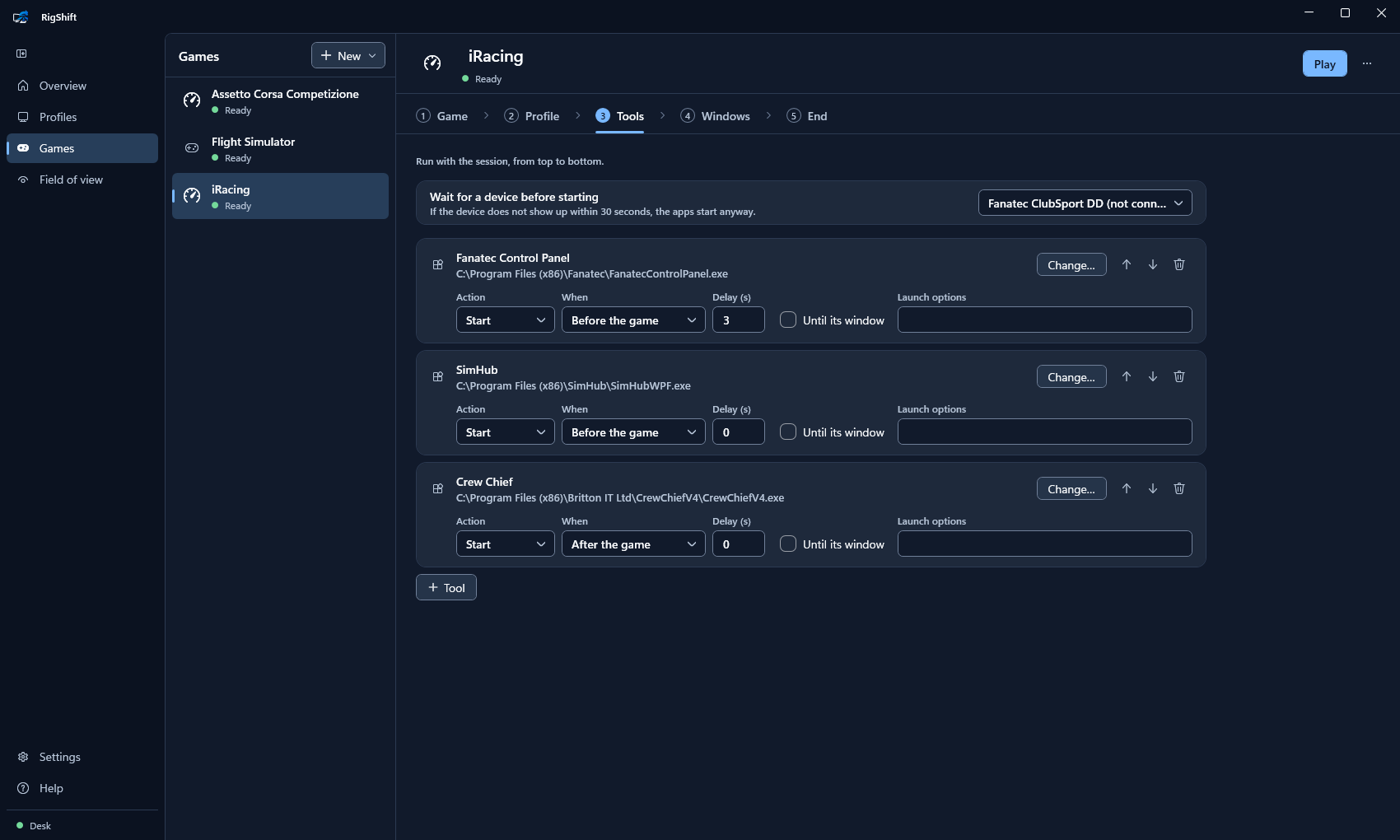
A game entry starts tools like SimHub and Crew Chief in order, moves their windows into place and launches the game. When the game exits, the tools close and the desk can come back. Games from Steam, Epic, EA, Xbox and iRacing are found automatically.
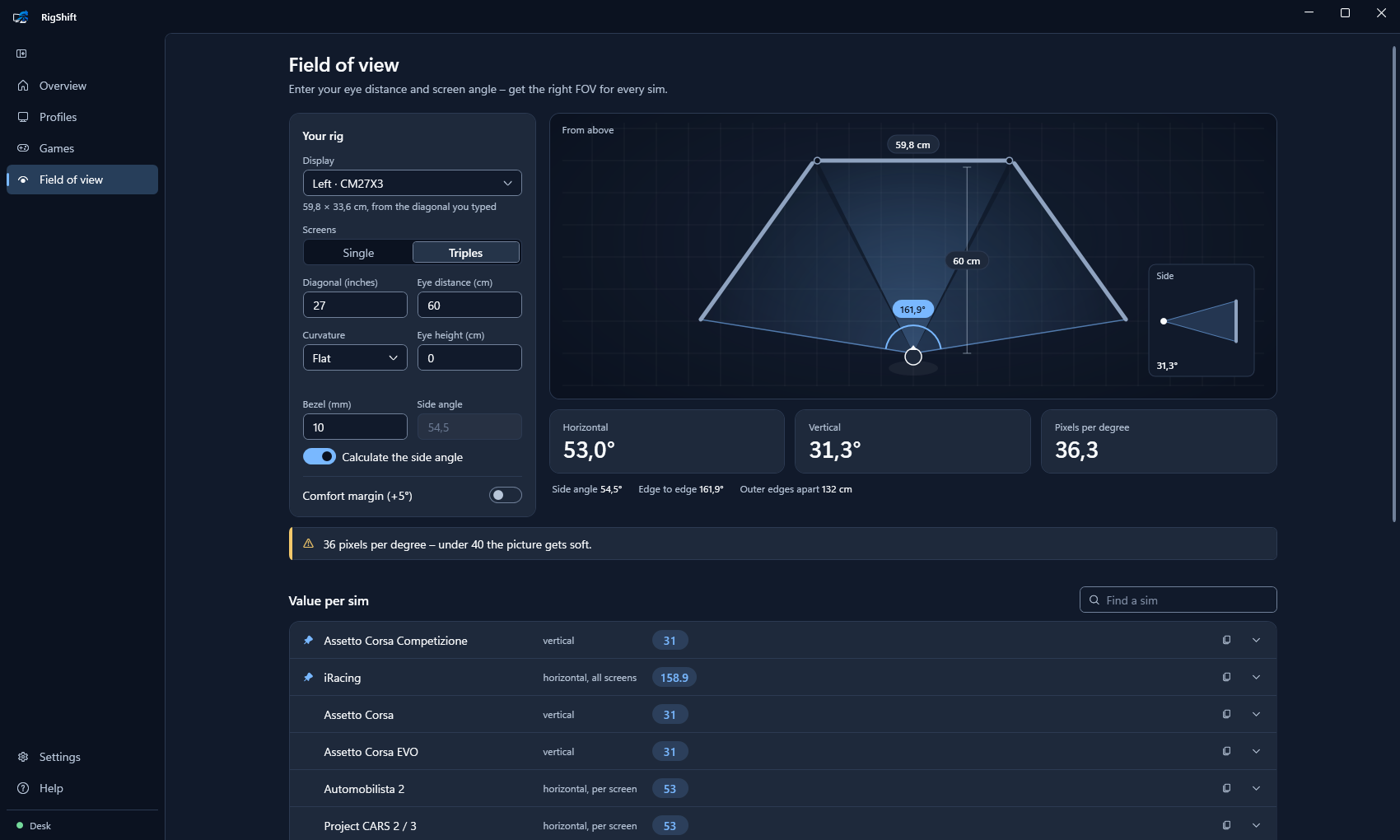
The real screen size is read from the monitor. From seating distance and screen angle, RigShift calculates the value for 18 sims, each in the unit the game expects.
rigshift:// link, for example on a Stream DeckOutput and microphone with their volume, and separate devices for calls.
Start or close programs with a profile, if needed only once a USB device is connected.
Icon positions per profile. The PC can stay awake while the rig profile is active.
Windows 10 or 11, 64-bit. About 80 MB including the .NET runtime; updates are a few MB and are offered in the app.
%AppData%\RigShift until the folder is deleted.RigShift is not code-signed. On first start SmartScreen shows a warning; More info → Run anyway starts it. With Smart App Control turned on, Windows 11 blocks unsigned apps.
| RigShift | DisplayMagician | DisplayFusion Pro | PitLaunch | |
|---|---|---|---|---|
| Revert after a countdown, also after a crash | Yes | No | No | Asks first, manual undo |
| Sound, apps and desktop icons in the profile | Yes | Sound and apps per shortcut | Sound device, icons | Sound and apps |
| Window positions of tools | Per game | Planned | Yes | Yes |
| Switch on USB devices | Yes | No | No | No |
| NVIDIA Surround / AMD Eyefinity | Surround | Both | Surround by macro | Neither |
| Price and source | Free, MIT | Free, GPL-3.0 | $34, closed | Free in early access |
DisplayMagician supports AMD Eyefinity and GOG or Ubisoft games, DisplayFusion offers full window management, PitLaunch is signed and available in the Microsoft Store. Comparison with six tools
Displays are switched through the standard Windows display API that every driver supports, so it should. It has only been tested on NVIDIA; hardware reports are welcome. AMD Eyefinity is not supported.
Sleeping monitors are woken and waited for. A display marked as optional can be missing without stopping the switch. Only displays that Windows sees at that moment can be switched.
Sound and apps work in a VR profile, and a USB rule can react to a headset's link box. The headset is not part of the display layout. VR has not been tested.
No admin rights. The internet is only used for the update check on GitHub.
A star on GitHub helps other sim racers find RigShift. Donations through Ko-fi support further development.